
When GB WhatsApp Not Install, Please Turn Off Google Play Protect
When installing GB WhatsApp APK, you may receive warnings from Google Play Protect, saying the app could be unsafe or harmful. This happens because GB WhatsApp is a third-party mod and not officially listed on the Google Play Store. However, if you trust your download source, you can safely turn off Google Play Protect to complete the installation.
This guide will show you how to disable Google Play Protect temporarily so you can install GB WhatsApp without interruptions.
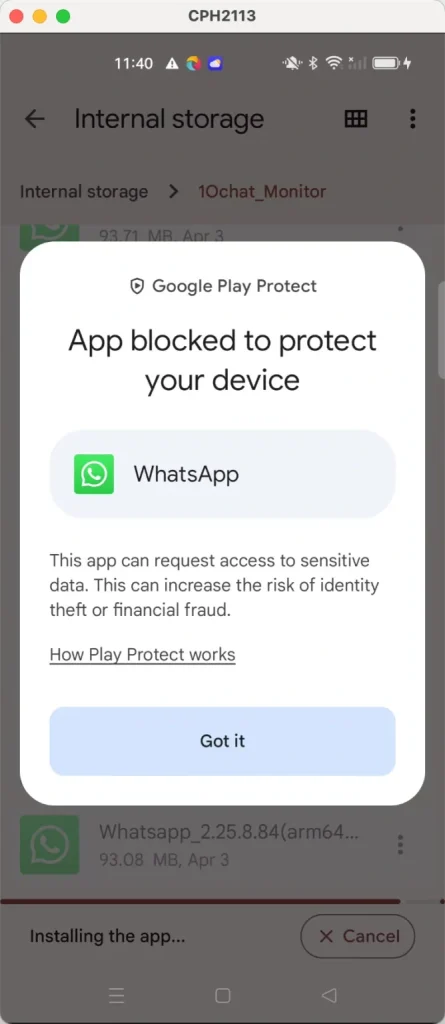
What Is Google Play Protect?
Google Play Protect is a built-in Android security feature that automatically scans your apps for threats. It helps protect users from malware or fake apps. However, it can also block legitimate third-party apps like GB WhatsApp, FM WhatsApp, or YO WhatsApp, even when they’re safe.
If you’ve downloaded GB WhatsApp APK (latest version 2025) from a trusted site, turning off Play Protect temporarily is safe and necessary for installation.
Why Google Play Protect Blocks GB WhatsApp
Google Play Protect detects that GB WhatsApp is not downloaded from the Play Store, so it automatically flags it.
Here are the most common messages you might see:
- “Play Protect has blocked this app.”
- “This app may harm your device.”
- “Installation not allowed.”
This doesn’t necessarily mean the file is harmful — it simply means it’s unverified by Google.
How to Turn Off Google Play Protect (Step-by-Step)
Follow these simple steps to disable Play Protect and install GB WhatsApp smoothly:
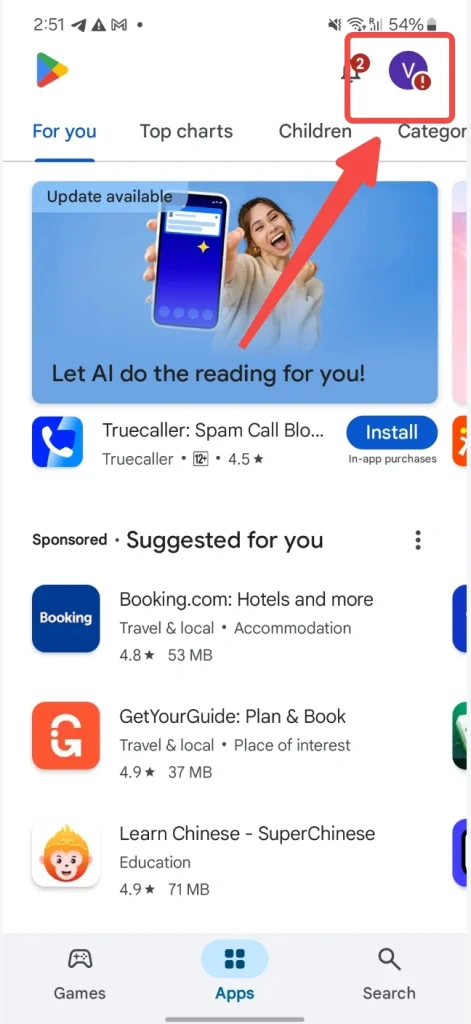
Step 1: Open Google Play Store
On your Android phone, open the Google Play Store app.
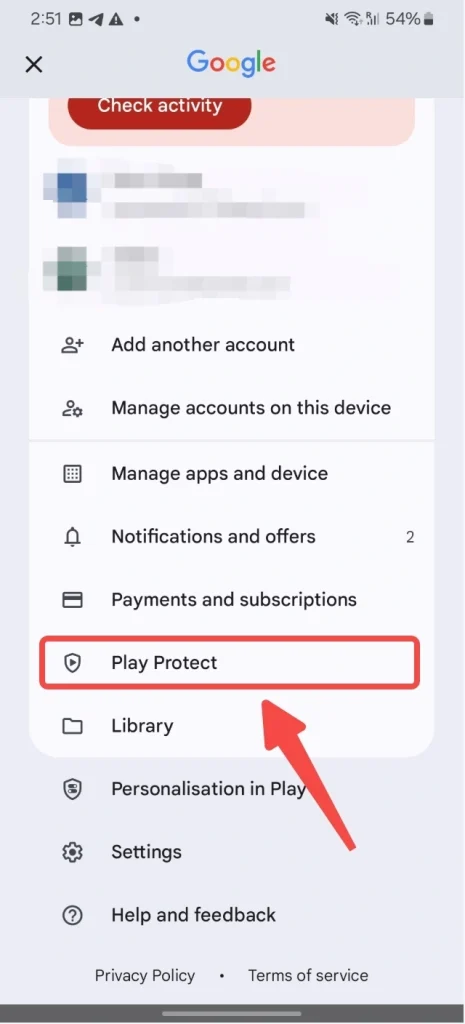
Step 2: Go to Play Protect Settings
- Tap your profile icon in the top-right corner.
- Select Play Protect from the menu.
- Tap the Settings (⚙️ icon) in the upper-right corner again.
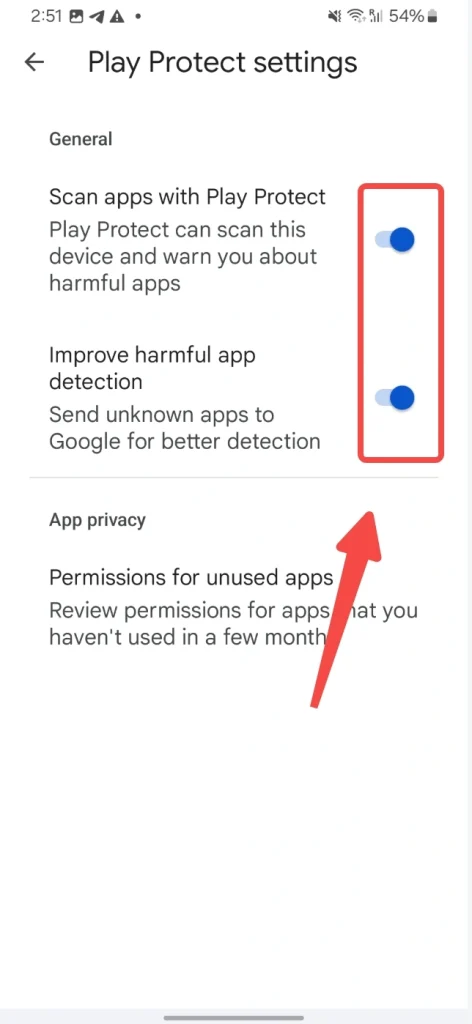
Step 3: Disable Scanning Options
You’ll see two options:
- Scan apps with Play Protect
- Improve harmful app detection
Turn both options OFF.
This will stop Google from automatically blocking apps outside the Play Store.
Step 4: Install GB WhatsApp APK
Now that Play Protect is turned off:
- Locate your GBWhatsApp.apk file in the Downloads folder.
- Tap to install it.
- Once installed, you can turn Play Protect back on for regular protection.
Step 5: Turn Play Protect Back On (Recommended)
After successfully installing GB WhatsApp, it’s a good idea to reactivate Play Protect to keep your device safe from other unverified apps.
Just follow the same steps and toggle both settings back ON.
Tips for Safe GB WhatsApp Installation
To ensure a safe and smooth setup, follow these additional tips:
- Always download GB WhatsApp APK from trusted sources.
- Avoid unofficial clones or unknown sites that bundle malware.
- Keep backups of your chats before uninstalling any WhatsApp version.
- Update GB WhatsApp regularly to stay protected and enjoy the latest features.
Final Thoughts
Turning off Google Play Protect is a simple yet essential step when installing GB WhatsApp or other WhatsApp mods. Once the installation is complete, you can enjoy all the advanced features — from custom themes to privacy tools — without constant warnings.
Remember, always download GB WhatsApp APK (latest version 2025) from a trusted source to ensure security and performance.